
News
Google Drive Cuts Photos Backup Bridge After Years of Separation
Drive for desktop stops Photos folder backups today as Google finishes peeling the services apart since 2019; existing media stays, new desktop path is weaker.

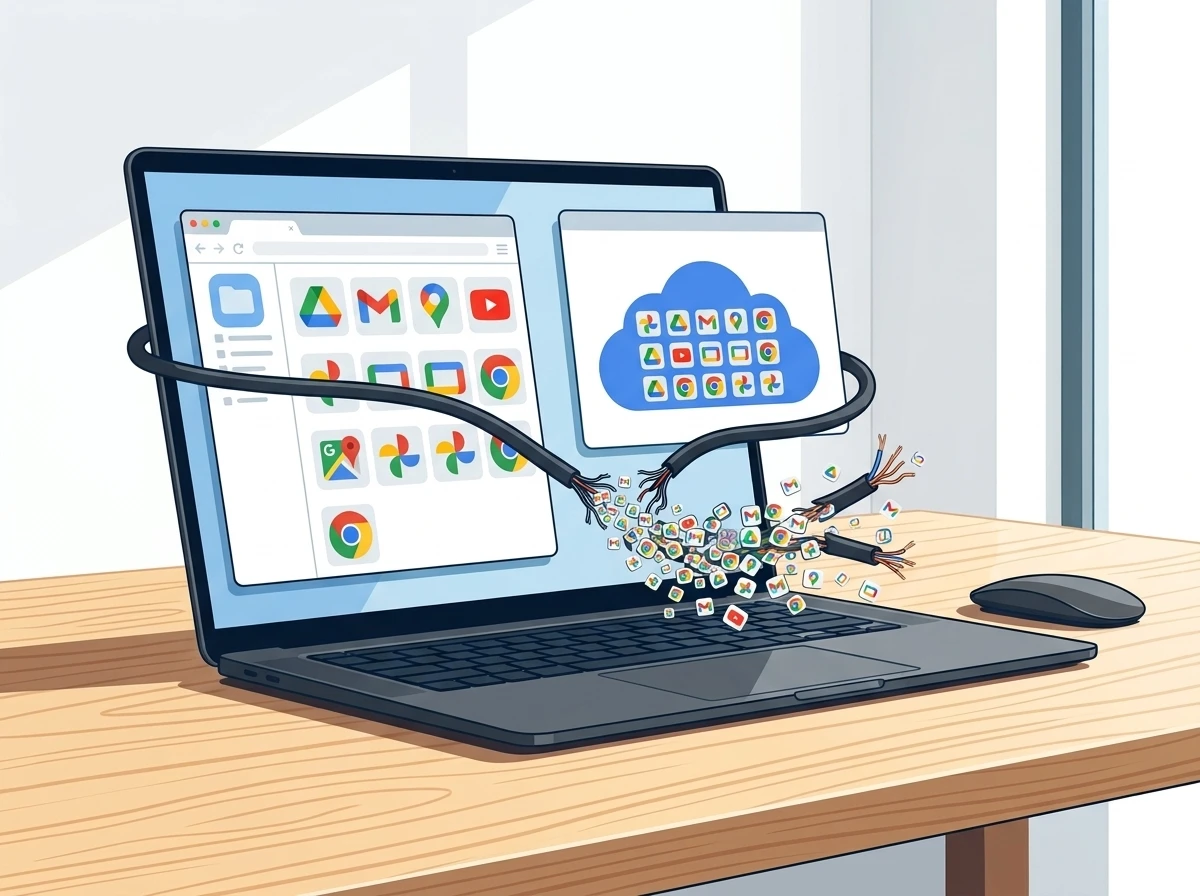
Google Drive for desktop stops supporting automatic Google Photos backups on August 10, 2026. Folders once set to push new photos and videos straight into Photos no longer do so after the cutoff. Existing media already in Photos stays put. Regular Drive file sync continues unchanged.
The move closes a bridge many desktop users treated as set-and-forget, especially anyone dumping camera cards or scans into a watched folder. Google frames it as simplifying tools so Photos handles photo work on its own.
The Exact Bridge That Closes Today
Drive for desktop long let users mark local folders so their photos and videos uploaded into Google Photos automatically, separate from ordinary Drive sync. That Photos-specific option ends completely on the stated date.
New folders could no longer be added through the Drive app after June 15, 2026. Existing ones kept working until now. After the cutoff, those folders simply stop sending fresh media to Photos. Nothing already backed up vanishes.
- June 15, 2026: No new Photos backup folders could be added inside Drive for desktop.
- August 10, 2026: All remaining Drive-for-desktop Photos backup support ends.
- Phone and mobile app backups stay fully intact and automatic.
- Drive desktop continues normal file syncing to Drive storage.
Google states the change on its official Google Photos backup help page: “Google Drive for desktop ends support for Google Photos backup on August 10, 2026.”
The two dates form a short runway. Users who missed the June cutoff still had nearly two months of grace on folders already marked. That grace now expires, and the client no longer offers any Photos toggle at all.
A Separation Years in the Making
This is not an isolated cut. In June 2019 Google announced it would stop the earlier Photos-Drive integration because users found the shared folder “confusing.” The 2019 announcement ending Photos Drive sync took effect July 10 that year. Photos and Drive stopped mirroring each other.
The desktop backup path was one of the last remaining automatic links that still treated the two products as partners for computer folders. Removing it finishes the clean split. Photos becomes the dedicated photo home. Drive stays the general file service. Casual phone users notice nothing. Desktop folder pipelines feel the break.
Power users who built years of camera imports, scanned documents, or project folders around that single toggle now face a rebuild. Community threads already called the replacement “not really viable” for hands-off workflows.
- June 2019: Google announces the end of the shared Photos-Drive folder model.
- July 10, 2019: The mirroring integration stops; the two products no longer keep identical copies.
- June 15, 2026: Drive for desktop blocks any new Photos backup folders.
- August 10, 2026: Remaining desktop Photos backup support ends completely.
Each step narrowed the overlap. The final cut leaves no automatic desktop bridge inside the Drive client.
How the Replacement Path Works
Google directs users to set backups inside Google Photos itself. On photos.google.com, the Create or + menu offers “Back up folders.” Select the same computer folders. Grant permission. The service then watches those folders.
There is a catch the old Drive method never had. Backups run only while the Photos site stays open in a browser tab, or while the installable Photos web app (PWA) remains running. Close the tab or let the browser sleep the computer and new files sit unuploaded until the next visit. The old Drive client handled background work without that requirement.
| Method | Background automatic | Requires open tab or PWA | Status after Aug 10 |
|---|---|---|---|
| Drive for desktop Photos option | Yes | No | Ended |
| Photos web “Back up folders” | Limited | Yes | Active replacement |
| Photos mobile apps | Yes | No | Unchanged |
| Manual drag or import | No | N/A | Always available |
Users can also add photos and videos from Google Drive into Photos after the fact. That creates a copy. Changes in one service do not touch the other. The copy counts against Google Account storage a second time if quality settings keep full originals.
The open-tab rule turns a once-silent process into one that needs a living browser session. Users who leave machines idle overnight or who close browsers at the end of the day will see uploads pause until the next active session.
Who Feels the Change
Phone-first users who rely on the Google Photos app keep seamless backups. The desktop cut never touches them.
The affected group is smaller but often high-volume: photographers or hobbyists who offload cards to a PC folder, families scanning old prints, freelancers dropping client images into a watched directory, or anyone who treated Drive desktop as the quiet courier into the Photos library and search features. For them the silent stop means new files can sit only on the local drive until someone notices the missing uploads.
Support threads and early notices show the same pattern. People discover the change when a folder they trusted stops filling Photos. One repeated complaint is that the web method feels like a step backward from true background sync, especially after profile switches or forced reboots that reset progress.
Volume amplifies the gap. A single card dump of several hundred images can sit unnoticed for days if the Photos tab is not open. Search, face groups, and shared albums then lag behind the local folder that once fed them automatically.
Storage Traps and Duplicate Risk
Google Account storage is shared across Photos, Drive, Gmail and more. Free tier starts at 15 GB. Paid Google One plans scale from there.
- Double counting: Importing the same file from Drive into Photos creates a second copy that uses storage again under Photos backup quality rules.
- Quality setting: Original quality keeps full size; storage saver compresses. The choice applies to new uploads.
- Limits still apply: Photos accept files up to 200 MB or 200 MP for images and 10 GB for video, plus listed formats on the file size and format limits for backup.
- Clean first: Review large libraries before re-pointing folders so you do not burn quota on duplicates.
Running the same folder through both remaining Drive sync and the new Photos backup is the fastest way to waste space. Uncheck one path or accept the cost.
The shared quota means every duplicate pair shrinks headroom for mail and ordinary Drive files at the same time. Checking the quality setting before the first bulk import prevents an immediate jump in used space that is hard to reverse without manual cleanup.
The Open Tab Rule Alters Daily Habits
The replacement path keeps the same folders under watch, yet it ties progress to an active Photos session. That single condition reshapes how desktop users must treat the machine after a card dump or scan batch.
Leaving the tab open or pinning the PWA becomes part of the routine. Sleep settings, browser updates, and profile switches can all interrupt the watch. When that happens, new files wait locally until the session returns.
- Card offloads finish only while the Photos site or PWA stays alive.
- Overnight idle periods pause uploads that the old Drive client would have finished unattended.
- Reboots and forced logouts require a fresh check of the folder list.
The mechanism is simple, yet it removes the set-and-forget quality that made the Drive toggle attractive for high-volume desktop pipelines.
Steps That Keep New Photos Flowing
Act now if any local folder still relied on the old Drive toggle.
- Open photos.google.com on a supported desktop browser.
- Click the Create or + control, then choose Back up folders.
- Select the folders that previously fed Photos and grant the permission prompts.
- Keep the tab open or install the Photos web app so background work can continue.
- Optionally stop the old Drive Photos checkbox: open Drive for desktop, Preferences, Folders from your computer, uncheck Back up to Google Photos, then save.
- For media already sitting only in Drive, use the Add Google Drive flow inside Photos to pull selected items across.
Google Drive for desktop ends support for Google Photos backup on August 10, 2026. To stop backing up existing folders before this date, use these instructions. To continue backing up folders after this date, you must add photos & videos from Google Drive to Google Photos.
That language appears on Google’s own help pages. Existing Photos library items remain safe and searchable. No mass deletion occurs.
Test with a fresh photo after setup. Confirm it appears in the library and carries the expected upload source in the info panel. If the web app stalls after a profile change or reboot, re-open and re-check the folder list.
What Remains Untouched
Google Drive itself keeps full desktop sync for ordinary files. Google Photos keeps mobile automatic backup, face groups, search, albums, and shared libraries. Storage rules and Google One plans stay the same. The only severed piece is the automatic desktop-folder-to-Photos handoff that lived inside the Drive client.
For many the change is invisible. For the slice of users who treated that handoff as infrastructure, today is the day the old pipeline goes quiet. The new path works, yet it asks more attention than the one it replaces. Set the folders, keep the tab or PWA alive, watch storage, and the library keeps growing. Miss the switch and new desktop photos simply stop arriving until someone looks.
Desktop Pipelines Need a Fresh Checklist
The split leaves ordinary Drive sync and mobile Photos backup intact, so the practical work falls on anyone who once relied on the desktop Photos toggle. A short post-cutoff checklist reduces the chance that new local files remain invisible to search and albums.
- Confirm the Photos web or PWA folder list matches every directory that used to feed the library.
- Verify one test image lands with the expected source label.
- Decide whether any Drive copies should also be imported, accepting the second storage hit if original quality is kept.
- Uncheck the old Drive Photos option so the same folder does not run two paths at once.
Those four checks turn the policy change into a one-time setup task rather than a recurring surprise when a folder goes quiet.
Frequently Asked Questions
Does the August 10 change delete any photos already in Google Photos?
No. Every photo and video previously backed up through the Drive desktop method stays in the library exactly as it was. Only future automatic uploads from those computer folders stop. Manual deletion is still required if you ever want items removed.
Will phone backups through the Google Photos app keep working?
Yes. Mobile automatic backup on Android and iOS is completely separate and continues without interruption. The cutoff applies solely to the Drive for desktop Photos folder option on computers.
Can I still back up computer folders automatically after the change?
Yes, but only through the Google Photos website Back up folders feature or the installable Photos web app. The process needs the site or PWA active for new files to upload. True always-on background sync like the old Drive client no longer exists for Photos.
Does importing from Drive into Photos use extra storage?
Yes. The copy created in Photos counts against your Google Account storage under the backup quality you have selected. The original in Drive continues to use its own space. Avoid dual copies of large libraries unless you need both.
What happens if I do nothing before or on August 10?
Existing Photos content remains safe. New photos and videos added to the old watched folders simply stop appearing in Google Photos. Drive file sync keeps working. You can still set up the web method later; nothing forces an immediate library loss.


Redmi Battery Monsters Win the Week as Samsung Trims S27 Cameras

Moto G Max India Bet Puts 7000mAh Battery Ahead of Specs

Take-Two CEO Pushes Netflix Subs for GTA 6 Extended Look

Google Bets Tensor G6 Efficiency Fixes Pixel’s Old Flaws

Grok Image 2.0 Adds Pro Edits While Scandals Linger

Caviar Leather iPhone 18 Pro Editions Kill Wireless Charging for Status

Quordle Monday Delivers Gavel Crush Speed Ethos Cleanly

Goldmund Telos 9800 Mono Amp Costs More Than Most Ferraris

Gemini Plan Dropped the Race and Made Running Stick

Cloudflare Kitesurf Cracks Chromium Moat for AI Agents

SpaceX Preps Starship Flight 13 to Fix Its Booster Failure

PS5 Adds a Weekly Wrap-Up Widget While Recently Played Stays Broken

Tears of the Kingdom Fans Trap Ganondorf in a Never-Ending Hamster Wheel

ZA/UM Lays Off 32 Staff as Zero Parades Wins Reviews, Not Players

EA’s New In-Game Ad Platform Skips the Games That Need It Most

Wall Street’s SpaceX and Merger Fee Boom Comes With a Catch

Colorado’s New Law Makes Automakers Own Dead EV Batteries

Pentagon Suspends CMMC Phase 2, Relieving Small Firms, Straining Assessors

Mortgage Rates Climb to 6.55%, the Highest Level in Nearly a Year

Perseid Meteor Shower Begins This Week Under a Rare Earthshine Moon
-

 TECHNOLOGY3 years ago
How to Adjust a Bulova Watch Band – An Easy Guide
-

 News3 years ago
Fred Pentland: Athletic Bilbao’s English mentor who changed the essence of Spanish football
-

 FINANCE3 years ago
Tax Planning for Every Season: Guide to Maximizing Your Tax Benefits
-

 Education3 years ago
African Ministers New Education Plan
-

 BUSINESS3 years ago
What is Entrepreneurial Operating System? A Comprehensive Guide to EOS
-

 Education3 years ago
Innovate Your Learning Journey with Technology and Enhance Education
-

 News3 years ago
Russians formally out of World Athletics Championships
-

 BUSINESS3 years ago
Top 9 Most Expensive American Cities to Rent an Apartment