
News
Windows 11 August Update Opens Secure Biometrics and AI Uninstall
August 2026 Patch Tuesday expands Windows Hello ESS to external sensors and lets Copilot+ PCs remove the image generation model while polishing daily tools.

Microsoft expects the Windows 11 August 2026 Security Update on Tuesday, August 11, delivering KB5101684 quality improvements to versions 24H2 and 25H2. The package expands Windows Hello Enhanced Sign-in Security to external fingerprint readers and lets Copilot+ PCs uninstall the Image Generation AI model, while File Explorer, Search, touchpad, Voice Access and power settings receive quieter fixes.
Features arrive through Controlled Feature Rollout, so timing varies by device. The official KB5101684 preview notes list production-quality changes rather than a single headline capability. That mix of security reach, optional AI cleanup and shell polish defines the release more than any one switch.
Secure Biometrics Reach External Readers
Windows Hello ESS previously stayed limited to built-in sensors on capable hardware, including many Copilot+ PCs. The August package extends ESS to supported peripheral fingerprint scanners. Users plug in a compatible reader, open Settings > Accounts > Sign-in options, and complete enrollment. The system may prompt a PIN refresh first.
- Connect a compatible match-on-sensor fingerprint reader
- Open Settings > Accounts > Sign-in options
- Complete enrollment, refreshing the PIN if prompted
ESS isolates biometric matching and template handling with Virtualization-Based Security and TPM 2.0. Match-on-sensor hardware carries a Microsoft-issued certificate that establishes a secure session. According to Windows Hello ESS peripheral support details, non-ESS sensors stop working once ESS is on; external cameras remain unsupported for ESS.
Desktop owners without factory fingerprint hardware gain a path to the higher security tier without buying a new laptop. That change lands after years of ESS acting as a hardware gate. The certificate-backed session keeps the matching work inside the protected boundary even when the sensor itself sits outside the chassis.
Once ESS is enabled, the older non-ESS path is closed on that device. Users who still rely on unsupported sensors must weigh that trade-off before turning the feature on. Cameras stay outside the ESS model entirely, so face sign-in on external hardware does not gain the same protection tier in this package.
Copilot+ Users Can Drop the Image Model
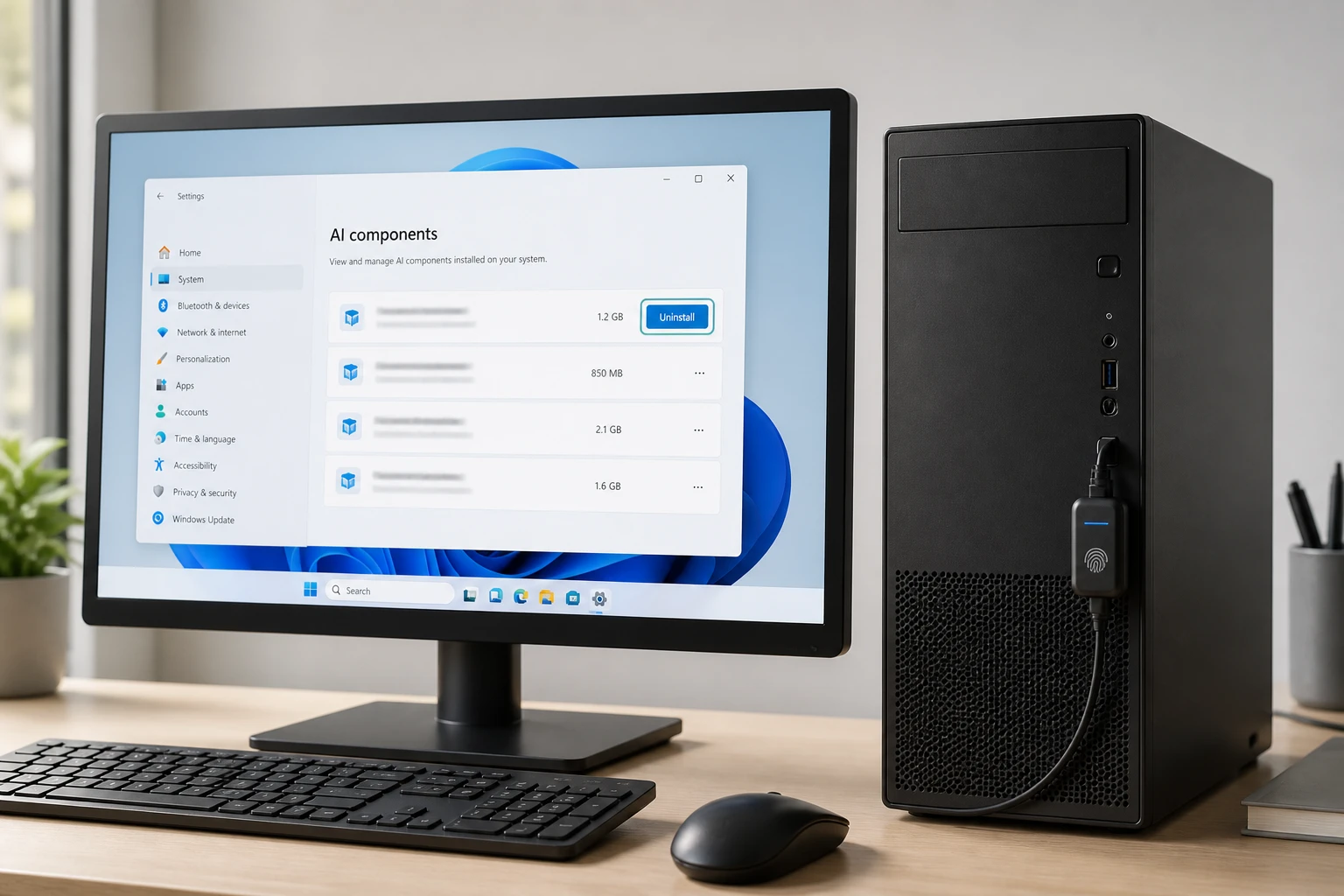
Settings > System > AI Components now includes an uninstall option for the Image Generation component on supported Copilot+ PCs. Microsoft documents the model as optional and large (several gigabytes). Apps download it on first use through Windows Update; users reclaim the space later from the same AI Components page.
The optional image generation model lifecycle treats the model as removable rather than permanent. Earlier Insider builds already showed uninstall buttons next to components such as Phi Silica, which one report measured above 2.5 GB. Image Generation is the first component called out for broad August availability.
It is not a master AI off-switch. Other on-device models and cloud features remain. Still, the move answers a persistent complaint that multi-gigabyte local models arrive without easy reverse gear. The Settings surface keeps the action inside the same page that lists the components, so reclaiming space does not require scripts or manual folder deletion.
Because the model arrives only on first use, some machines never hold the files until an app requests them. The uninstall path then matters most for owners who tried the feature, decided against keeping it, and want the gigabytes back without waiting for a broader AI management overhaul.
| Area | Change in KB5101684 | Who benefits first |
|---|---|---|
| Windows Hello ESS | Peripheral fingerprint support | Desktop and non-built-in sensor PCs |
| AI Components | Uninstall Image Generation model | Copilot+ users reclaiming disk |
| Voice Access | Voice Isolation plus three filter modes | Noisy environments, shared rooms |
| File Explorer | Proper size units, middle-click tabs | Heavy file managers |
| Power & battery | Settings apply to all plans; Energy Saver threshold returns | Laptop users who edit timers |
Crowd discussion on X treats the uninstall path as the item worth sharing first, even while noting it covers only one model. Privacy-focused users still want broader removal tools; the official option at least sits in Settings instead of third-party scripts.
File Explorer and Search Feel Less Clumsy
In Details view, file sizes finally show KB, MB or GB instead of raw kilobytes. Middle-click opens a folder in a new tab from the address bar or Home page. Microsoft fixed a gray flash on Home load, unexpected scroll jumps, and soft thumbnails in Recommended.
Windows Search handles typos and partial app names more cleanly. Two-character queries work. Settings search ranks relevant pages higher. These land alongside the earlier Windows 11 Search ad cleanup that already reduced clutter for many users.
None of the changes rewrite the shell. Together they remove daily friction that accumulated since the original Windows 11 launch. Size labels that match ordinary expectations cut a small translation step every time someone scans a folder. Middle-click tabs bring Explorer closer to the habits already common in browsers.
The Home page fixes target visual stutters that made the surface feel unfinished. Soft thumbnails and scroll jumps were minor alone; stacked together they shaped first impressions of the file manager after each reboot or folder switch.
Touchpad Speed, Voice Isolation, Quieter Lock Screen
Precision touchpads gain scroll and zoom speed sliders plus accelerated scrolling that speeds up with repeated gestures. Both sit under Settings > Bluetooth & devices > Touchpad.
Voice Access adds Voice Isolation. Three modes appear under Improve speech recognition:
- Voice Isolation, filters other speakers and background noise after one-time voice setup
- Remove background noise only, suppresses typing or door sounds with no extra setup
- No filtering, raw microphone input
Korean language support arrives for Voice Access. Fluid Dictation in Voice Typing defaults off for new users and shows a teaching tip on first use.
Lock screen defaults to Weather only for new users. Taskbar notification badges adopt the system accent color instead of red. Both reduce visual noise without removing features. The accent-colored badges keep urgency cues while matching the rest of the theme instead of forcing a fixed alert color.
Accelerated scrolling rewards repeated gestures rather than forcing a single fixed speed. Users who skim long documents or large photo sets can raise the ceiling without losing fine control on short moves. The Voice Isolation modes give a clear ladder from full filtering to raw input, so shared rooms and quiet desks can pick different defaults.
Power Settings Stick Across Plans
Display timeouts, sleep and hibernate timers, power-button and lid-close actions now apply to every power plan when changed in Settings, not only the active one. The Energy Saver battery-percentage threshold returns to Settings > System > Power & battery.
Windows Update shows more accurate progress estimates and improves post-install cleanup so the system feels snappier sooner. System sounds receive dark-mode tuning. These sit in the same reliability bucket as the prior battery drain from driver work that Microsoft has spent years unwinding.
Plan-wide application ends the surprise of editing a timer only to discover it vanished after a plan switch. Laptop owners who move between Balanced and Power saver no longer rebuild the same lid-close or sleep rules by hand. The returned Energy Saver threshold puts the percentage control back where battery decisions already live.
Clearer update progress and faster post-install cleanup shorten the window when a machine feels half-ready. Dark-mode sound tuning is a smaller polish item, yet it keeps audio cues consistent with the visual theme users already chose.
Account Control Flyout and Setup Clarity
The Start menu Account Control flyout gains a refreshed layout and a subscription-status badge. Microsoft account users see plan benefits and OneDrive storage without hunting through multiple pages. Availability still varies by market and device.
Windows Setup adds a parental-controls notice that points families toward safety features. Magnifier on touch devices turns off its panning bars by default so they no longer cover content. Font fixes cover Myanmar and Mongolian scripts. DHCP, IPPS printing and clipboard reliability in remote sessions also improve.
The flyout badge reduces the steps between a glance at the Start menu and a check on storage or plan status. Setup’s parental-controls notice surfaces family safety options at the moment a new device is configured rather than leaving them buried for later discovery.
Magnifier’s default change on touch hardware keeps the magnified view usable instead of hiding the very content the user needs. Script and printing fixes round out the reliability work that rarely earns a headline yet still affects daily use for specific locales and remote workflows.
This is the kind of Windows 11 update I like to see. It’s not built around a flashy headline feature, but instead focuses on polishing the experience in dozens of small ways.
Mauro Huculak wrote that assessment for Windows Central after reviewing the August package. He flagged the AI uninstall option as a modest but welcome step and still advised waiting a few days after release before installing on a primary machine.
Controlled Feature Rollout Staggers the Arrival
Controlled Feature Rollout means the same KB5101684 package does not light every change on every device the morning of August 11. Microsoft stages visibility so timing varies by machine. Some owners see peripheral ESS enrollment or the Image Generation uninstall entry within days; others wait through later waves.
The preview notes already describe the changes as production-quality. That framing separates this package from experimental flights: the work is finished, yet the switch that exposes each item still moves on a schedule. Users who check Settings immediately after the update may find a feature missing only because their device has not yet been offered that slice of the rollout.
Waiting a few days after release, the caution Huculak repeated, therefore serves two purposes. It lets early reliability signals surface, and it gives Controlled Feature Rollout time to widen the set of visible improvements on a given PC. The security baseline still arrives with the August LCU; the optional surfaces simply appear on their own clock.
Home and Pro Face an October Deadline
Home and Pro editions of 24H2 approach end of updates on October 13, 2026. Devices that stay current receive these quality fixes and the security baseline that ships with the final August LCU. The August 11 package is therefore one of the last broad quality drops those editions will see while still fully in support.
- August 11, 2026 – KB5101684 security and quality update
- October 13, 2026 – Home and Pro 24H2 end of updates
Staying on the current train matters more as that October date nears. Machines that skip the August LCU miss both the ESS peripheral path and the Image Generation uninstall option while support is still active. The quieter File Explorer, Search, touchpad and power fixes travel in the same package.
25H2 continues beyond that cutoff, so the same KB serves two audiences: 24H2 owners collecting late-cycle polish, and 25H2 owners receiving ordinary monthly improvement. The dual targeting keeps the servicing story simple even as one branch approaches its end date.
Why the Quiet Concessions Matter Now
ESS on external readers removes a hardware lock that kept many desktop configurations out of the highest biometric tier. Removable image models give Copilot+ owners a Settings path to reclaim space after the model lands via Windows Update. Both address specific friction that accumulated while Microsoft pushed on-device AI and secure biometrics as default.
The rest of the update is refinement: better size labels, middle-click tabs, accent-colored badges, consistent power plans, honest update progress. Controlled Feature Rollout means some items appear over weeks. Microsoft lists no known issues with the preview package at publication time.
Home and Pro editions of 24H2 approach end of updates on October 13, 2026. Devices that stay current receive these quality fixes and the security baseline that ships with the final August LCU. Waiting a few days after August 11 remains the usual caution for non-urgent machines.
The August package will not silence every AI critic or replace a built-in sensor for every user. It does move two concrete levers: who can enroll secure external fingerprints, and who can delete a multi-gigabyte image model without third-party tools. Those second-order shifts outlast the unit labels in File Explorer.
Taken together, the peripheral ESS path and the removable image model show Microsoft answering two repeated requests without waiting for a full feature overhaul. The surrounding polish keeps daily surfaces from feeling neglected while those larger levers move. For owners still on 24H2 Home or Pro, installing after a short burn-in window is the practical way to collect both the security baseline and the quality work before the October support cliff.


Red Cross Rations Type O as Second National Blood Crisis Hits

eBay Ex-CEO Funds Free Speech Charity After Steiner Settlement

Kospi Drops 6% as Chip Concentration and Leverage Amplify Miss

US Ban Locks Out New Chinese Humanoid Robots and Hands Home Makers the Field

Florida’s $800 Million Mega Millions Win Shrinks Fast After Tax

American Airlines Outage Met Storms and Stretched Delays

Audi Bets Big on the 2027 Q9 as Its US Flagship SUV

Micron’s Contracts Raise Floors but Market Still Prices a Peak

Pixel 11 UK Leak Hides Flat Batteries Behind Storage Bump

Oil Rebounds as Strikes Hit and SPR Hits 1983 Floor

Pokémon GO Developer Niantic Rebrands as Scopely Explore

Persona 4 Revival Hands All Anime Cutscenes to Studio MAPPA

Jaylen Brown Traded to 76ers for Paul George and Four Draft Picks

Doom Studio id Software Cuts Half Its Staff in Xbox Layoffs

Nintendo Switch Online Adds Four Classics and One Japan-Only Title

Jordan Henderson Hospitalized After Wrist Injury at the Azteca

Mexico’s World Cup Run Ends at Azteca as England Hold On 3-2

Meta’s Muse Image Lets Anyone Use Your Instagram Photos in AI

Louis Vuitton Beats Molly Tea in China, Triggers Cultural Backlash

Pink Bearista Cup Returns July 13 as Starbucks Pink Vibes Drops
-

 TECHNOLOGY3 years ago
How to Adjust a Bulova Watch Band – An Easy Guide
-

 News3 years ago
Fred Pentland: Athletic Bilbao’s English mentor who changed the essence of Spanish football
-

 FINANCE3 years ago
Tax Planning for Every Season: Guide to Maximizing Your Tax Benefits
-

 Education3 years ago
African Ministers New Education Plan
-
 BUSINESS3 years ago
What is Entrepreneurial Operating System? A Comprehensive Guide to EOS
-

 Education3 years ago
Innovate Your Learning Journey with Technology and Enhance Education
-

 BUSINESS3 years ago
Top 9 Most Expensive American Cities to Rent an Apartment
-

 News3 years ago
Russians formally out of World Athletics Championships