
NEWS
iOS 27 Finally Shrinks the Giant iPhone Lock Screen Clock
iOS 27 tucks the iPhone lock screen clock beside the date and extends photos with Apple Intelligence, after iOS 26 stretched the time.

iOS 27 lets you shrink the iPhone lock screen clock into the date row, reversing the oversized time iOS 26 dragged down the display. Apple shipped the update on September 14, 2026, with Apple Intelligence tools that fill a photo’s edges and build a wallpaper from a prompt.
The setup that actually changes the first thing you see is the one that gets the chrome off the picture.
Last Year’s Clock Covered the Photo
For four years Apple has treated the Lock Screen as a place you dress, not a slab of type on a stock galaxy. iOS 16 in 2022 put widgets and fonts on that screen. iOS 18 in 2024 let you rip off the flashlight and camera buttons and restyle the Home Screen to match. iOS 26 in 2025 poured Liquid Glass over the clock, the widgets, and the corner controls, then let you drag the time down until it filled a huge slice of the photo.
That last trick only ran one way. You could pull the clock larger. You could not push it smaller than the size Apple shipped. Faces, dogs, and skylines sat under a glass numeral that was proud of itself. Full-screen album art already shoved the time into a thin top row, which made the everyday photo wallpaper feel like the neglected case.
THE LOCK SCREEN OPENS UP
- 2022, iOS 16: Widgets, clock fonts, and depth photos land on the Lock Screen.
- 2024, iOS 18: Flashlight and Camera become optional controls, and the Home Screen can follow the same look.
- 2025, iOS 26: Liquid Glass, a clock you can stretch down the display, widgets you can drag to the bottom, and spatial photo scenes.
- 2026, iOS 27: A compact clock, wallpaper Extend, Image Playground in the picker, and a swipe that clears Now Playing.
iOS 27 does not throw that pile away. It adds the missing direction, and it puts Apple Intelligence on the same editor that used to be fonts and filters. The generative tools showed up first on the screen you glance at without unlocking, which is a quieter rollout than a rebuilt Siri, and a more visible one.
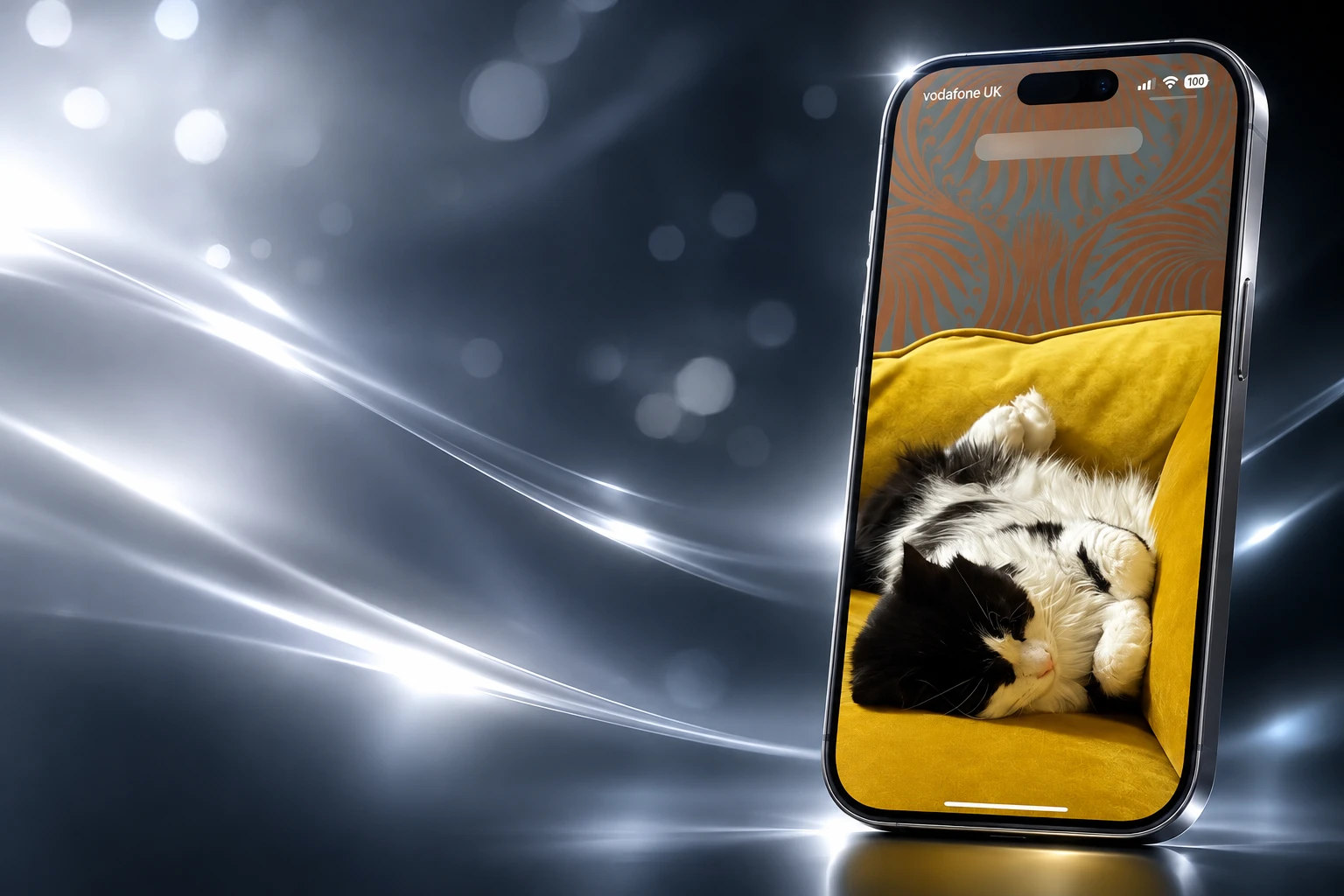
How to Shrink the Lock Screen Clock
Touch and hold the Lock Screen, tap Customize, tap the time, then tap the two-bar icon at the top right of the Font & Color panel; the clock jumps into the date row at roughly the size of the date. That compact layout is a per-wallpaper choice, so one screen can stay huge while another goes tiny, and you still keep the font, weight, and color you already picked.
The small type gives up the clock’s own Liquid Glass slider, because there is not enough stroke to frost. Widgets ride up with the time; you can drag that row back to the bottom if you want them under your thumb. Glanceability from across a room is worse. The photo is better. That is the trade, and it is the first time Apple has let the wallpaper win on purpose.
A system-wide Liquid Glass slider still sits in Settings under Appearance, and it tints notifications, widgets, and the corner buttons from clear to frosted. If a busy picture makes banners hard to read, drag that slider toward tinted, or turn on Reduce Transparency under Accessibility. The compact clock does not need that fight, because it has already left the middle of the frame.
Extend Fills in the Crop You Always Hated
Most favorite pictures are the wrong shape for a tall phone. You pinch until a face is a poster, or you live with bars. iOS 27’s Extend tool generates extra pixels around the edges so the shot can sit full-bleed without that crop.
In the wallpaper editor, zoom out until empty space shows around the photo, then take Extend when it appears. iOS can also suggest the tool when it sees a framing problem, and the same fill exists in Photos next to a reworked Clean Up and a Reframe control. The model invents matching background, sky, floor, or wall so the original subject can sit where you want it, including away from where a big clock used to sit.
That is why the compact clock and Extend belong together. One stops the software covering the picture. The other stops you from covering it yourself. The catch is hardware: Extend is an Apple Intelligence feature, so it wants an iPhone 15 Pro or later, an iPhone 16 or later, an iPhone Air, or an iPhone Duo, with Intelligence turned on. A phone that only runs iOS 27 still gets the tiny clock.
Filled edges can look uncannily close to the real photo, which is the point of the tool and the reason to inspect the new border before you tap Add. You are hanging a partly generated picture on the one screen guests see.
A Wallpaper From a Sentence, Sized for the Phone
If you do not have a photo you love, the wallpaper picker now has Image Playground in the top row. Describe a scene, pick a style, or start from a shot or a person in Photos, and Apple Intelligence returns an image already sized as a wallpaper. The picker also surfaces stylized takes on your own library, with looks such as Animation and Illustration, and you can keep prompting until the result is less wrong.
Apple’s WWDC 2026 session on the rebuilt generator walks through styles, edits by circling a region, and how to request a portrait image for full screen so the output matches an iPhone, not a square social card. The new model runs on Private Cloud Compute and is meant to handle photoreal work as well as sketch and animation, a jump from the cartoon-first Playground that shipped with the first Apple Intelligence wave.
TWO WAYS TO BUILD A WALLPAPER
| Tool | What it does | Needs Apple Intelligence | Can hit a daily cap |
|---|---|---|---|
| Your photo, as shot | Crop, depth, and filters only | No | No |
| Extend | Invented pixels around a real photo | Yes | Yes, as photo editing |
| Image Playground | A new image from a prompt, style, or person | Yes | Yes, by name |
The compact clock is free in the sense that it is just layout. The generators are not an unlimited studio. Apple has already published daily usage limits on Image Playground, and it groups those limits with Siri AI and Intelligent Photo Editing Tools, the bucket Extend sits in. Limits vary by feature, demand, and how heavy the request is. Apple also says expanded access will be available for a fee later.
Certain Apple Intelligence features that rely on server-side models are subject to daily usage limits, including but not limited to Siri AI, Intelligent Photo Editing Tools, Image Playground, and AFM 3 Cloud models in Shortcuts. Daily limits may vary by feature, request complexity, system demand, system policies, and other factors. Expanded access to such features will be available for a fee in the future.
Apple Support, How to get Siri AI
Siri AI itself is still a beta you turn on under Settings, Siri, and it is a different switch from the wallpaper tools. You can shrink a clock and swipe away music with no Intelligence download at all. You cannot Extend a landscape of your kid, or prompt a misty garden, unless the phone and the account qualify.
The Music Card Can Leave Without Stopping
Now Playing used to squat on the Lock Screen for as long as audio ran, which made accidental taps common and made a careful wallpaper look like a player skin. In iOS 27 you start the song, lock the phone, then swipe left across the playback card. The panel goes away. The track does not.
Control Center and the music app still run the queue. The win is visual, the same as the compact clock: the picture stays the picture while something that used to be mandatory gets out of the way. Use it when album art is already the wallpaper and a second card is just a duplicate, or when a podcast’s artwork fights a photo you actually wanted to see.
Flashlight and Camera No Longer Own the Corners
Swapping the bottom controls is older than iOS 27. It became useful again because the hardware caught up. iPhone 16 and later have Camera Control. iPhone 15 Pro and later have an Action Button you can map to the light, the shutter, or something else. A left swipe on the Lock Screen still opens Camera, unless you turned that gesture off.
So the two circles that used to be sacred are spare slots. In Customize, tap the minus on Flashlight or Camera, tap plus, and pick a control from Apple’s list or a supported third-party app. Timer, Voice Memos, Wallet, Translate, and Shortcuts all show up in that picker. You still only get two corners, which is why people keep asking for a swipe that would cycle extra actions. Apple has not given them that.
WHY THOSE CORNERS WENT SOFT
- Camera swipe: A left swipe on the Lock Screen still opens Camera, so the corner shutter is optional.
- Camera Control: On iPhone 16 and later, the dedicated camera hardware makes the on-screen button a duplicate.
- Action Button: On iPhone 15 Pro and later, the side button can take the flashlight or another control you used to park in a corner.
- Control Center: Flashlight brightness still lives there, even if the Lock Screen circle is gone.
Empty corners are another subtraction trick. They only look original if the replacement is something you actually hit while the phone is locked. A decorative icon is just clutter in a new shape.
Which Lock Screen Pairs With a Focus?
Focus has been able to carry its own Lock Screen, Home Screen, and allowed callers since iOS 15 in 2021, and most people still only touch Do Not Disturb. That is a waste now, because clock size, corner controls, and even an Extended photo can differ on every wallpaper. Apple’s iPhone guide shows how to link a Lock Screen to a Focus so the filter and the look switch together.
Build a sleep screen with the compact clock and a dim photo, a work screen with the large glass time and a calendar widget, a driving screen that silences Slack. Triggers still include time, a place, and, on Intelligence phones, what you are doing, such as opening a game or boarding a commute. Flip the wallpaper in the gallery and the Focus follows; flip the Focus in Control Center and the wallpaper follows.
None of that required iOS 27. The new software just gives each of those screens a clock that can vanish into the date, a photo that can be grown to the bezels, and a music card you can throw away. The cooler lock screen is the one you stop noticing, except for the picture you chose, including the pixels the phone invented to keep that picture whole.
Frequently Asked Questions
Does the Compact Clock Need Apple Intelligence?
No. Compact clock, Now Playing swipe, Liquid Glass opacity, and the corner-control picker all run on any iPhone that installs iOS 27, including iPhone 15 non-Pro models that cannot turn on Apple Intelligence. Extend and Image Playground wallpapers are the features that stay gated to iPhone 15 Pro and later, iPhone 16 and later, iPhone Air, and iPhone Duo, with Intelligence enabled and a supported language and region.
How Do You Restore the Large Lock Screen Clock?
Open the same Font & Color panel and tap the two-bar icon again; it is a toggle, not a one-way shrink, and it restores the previous size and position on that wallpaper. Other Lock Screens you built stay as they are, so a Focus that still wants the oversized glass time will not be rewritten when you compact a personal photo screen.
Does Hiding Now Playing Stop Playback?
No. A left swipe only clears the Lock Screen card. Audio keeps going, and you still change tracks, volume, and output from Control Center or from the app that started playback, which is the whole reason to dismiss the card when you want the wallpaper back.
Can Image Playground Mix a Person From Photos?
Yes. The wallpaper picker can start from a description, a style, an existing photo, or a person in your library, and the standalone Image Playground app can combine up to seven elements, such as a person, a place, and a costume, before you save a result. Those generations share the same daily cap as other cloud-backed Apple Intelligence image tools, so a long tinkering session can stop until the next day unless Apple has opened paid headroom on your account.

The Strip Bojangles That Charged $100 for 10 Minutes

The Security Fixes Took Microsoft and the NSA Offline

iOS 27 Finally Shrinks the Giant iPhone Lock Screen Clock

AirPods Pro 3 Are $179 Again, Below Last Year’s Cut

Dragon Returns ISS Samples Only It Can Bring Home

Microsoft 365 Auth Fault Took Down Exchange and Teams

OpenClaw 2.0 Ships a Team Workplace With Host-Trust Defaults

Xbox Caps Game Pass Cloud Gaming at 15 Hours

OpenAI Unveils GPT-6 Astra With a Critical Cyber Label

Squishy Dumpling Toys Recalled After Hiding Illegal Water Beads
-
 NEWS3 months ago
Microsoft 365 Auth Fault Took Down Exchange and Teams
-
 NEWS3 months ago
OpenClaw 2.0 Ships a Team Workplace With Host-Trust Defaults
-
 GAMING3 months ago
Xbox Caps Game Pass Cloud Gaming at 15 Hours
-
 NEWS3 months ago
OpenAI Unveils GPT-6 Astra With a Critical Cyber Label
-
 LIFESTYLE3 months ago
Squishy Dumpling Toys Recalled After Hiding Illegal Water Beads
-

 BUSINESS3 months ago
Diesel Breaks Its Record as the White House Claims Credit
-

 NEWS3 months ago
IFA 2026’s Weird Gadgets Are Building a Sensor Home
-

 BUSINESS3 months ago
ChargePoint Stock Rally Prices Wilmer’s Three-Year Cash Plan